
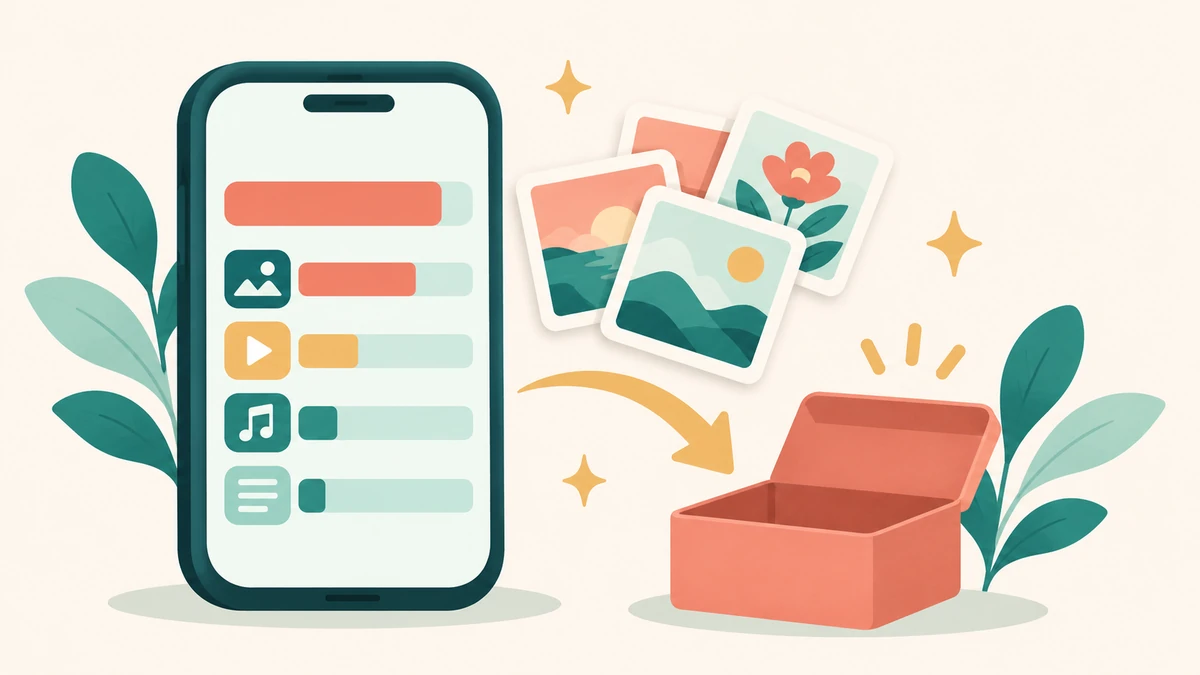
To free up storage on your iPhone, go to Settings > General > iPhone Storage to see what is using space. Then offload or delete apps you do not use, empty the Recently Deleted photo album, set old messages to delete automatically, and remove downloaded videos, music, and podcasts. For photos synced with iCloud, use storage optimization rather than deleting pictures you want to keep.
Quick Summary
- Check Settings > General > iPhone Storage first.
- Offload or delete apps you rarely use.
- Empty Photos > Recently Deleted.
- Set Messages to keep texts for 30 days or 1 year.
- Delete downloaded shows, music, and podcasts.
- Keep independent photo backups and use iCloud storage optimization for synced photos.
Menu names vary by iOS version. On recent versions, individual app settings are under Settings > Apps.
1. See What Is Taking Up Space
Open Settings > General > iPhone Storage. After it loads, you will see a color bar showing categories like Apps, Photos, Messages, and System Data, plus a list of apps sorted by size. Start with the biggest items. Apple also shows recommendations at the top, such as offloading unused apps or reviewing large attachments.
2. Offload Unused Apps
Offloading removes an app but keeps its documents and data. The saved data can be used again if the app is still available to reinstall.
- For one app: tap it in iPhone Storage and choose Offload App.
- Automatically: turn on Offload Unused Apps in Settings > Apps > App Store.
Choose Delete App only after saving anything you need. This removes the app and its local data; it does not necessarily erase data held in an online account.
3. Empty “Recently Deleted” in Photos
Deleted photos and videos stay in the Recently Deleted album for about 30 days before they are permanently removed. Open Photos > Collections > Utilities > Recently Deleted. Use Face ID, Touch ID, or your passcode if prompted. Tap Select, then the three-dot menu and Delete All, and confirm. Older layouts may place Recently Deleted under Albums. Permanent deletion cannot be undone. With iCloud Photos, it affects the synced library too.
4. Clean Up Large Videos
Videos, especially in 4K, take up far more space than photos. In the Photos app, look under Media Types > Videos and delete clips you do not need. Back up important ones first. Our guide on how to back up phone photos walks through the options.
5. Turn On iCloud Photos With “Optimize Storage”
If you use iCloud Photos, go to Settings > [your name] > iCloud > Photos and look for Optimize iPhone Storage or iPhone Storage > Optimize Storage, depending on your version. Full-resolution photos stay in iCloud while your phone keeps smaller versions. You may need more iCloud storage if your library is large.
6. Delete Old Messages and Attachments
Texts with photos and videos add up over years.
- Go to Settings > Apps > Messages > Keep Messages and choose 30 Days or 1 Year instead of Forever. Be aware this deletes older messages.
- In iPhone Storage, tap Messages and review large attachments, photos, and videos. Delete the ones you do not need.
7. Remove Downloaded Media
Check streaming and music apps for downloaded content:
- Video apps: delete downloaded episodes and movies you have finished.
- Music: remove downloaded albums you no longer play.
- Podcasts: set episodes to delete after playing.
8. Clear App Caches
Some apps, like social media and browsers, store a lot of cached data. A few apps have a “clear cache” option in their own settings. Deleting and reinstalling an app may clear cached data, but it can also erase local files or drafts. Save those first and make sure you can sign in again.
For Safari, go to Settings > Apps > Safari > Clear History and Website Data. This signs you out of websites, so only do it if needed.
9. Review Files and Downloads
Open the Files app and check the Downloads folder and “On My iPhone” for old PDFs, videos, and documents you no longer need.
10. Restart Your Phone
Sometimes temporary files and “System Data” shrink after a restart. It is a quick, safe step to try after cleaning up.
What Is “System Data” and Can I Delete It?
System Data includes caches, logs, and temporary files. You cannot delete it directly, and its size goes up and down on its own. Clearing app caches, deleting old messages, and restarting can help reduce it.
Prevent Storage From Filling Up Again
- Keep independent backups and use storage optimization for photos synced with iCloud.
- Keep Offload Unused Apps turned on.
- Set Messages to auto-delete older texts.
- Check iPhone Storage once a month.
While you are tidying up your phone, it is a good time to update your passwords too. Here is how to make a strong password. Want a fresh look? Try a custom Instagram app icon.
FAQ
Does offloading an app delete my data?
Offloading keeps its documents and data on the device. Deleting removes its local data, though data saved to an online account may remain.
Why is my iPhone storage full when I don’t have many photos?
Messages attachments, downloaded media, app caches, and System Data are common culprits. Check iPhone Storage for details.
Will deleting photos from my iPhone delete them from iCloud?
If iCloud Photos is turned on, yes, deletions sync across devices. Back up separately first if you want to keep copies.
How much free space should I keep?
Keeping some free space helps updates install and keeps the phone running smoothly. A few gigabytes is a reasonable cushion.
Leave a Reply